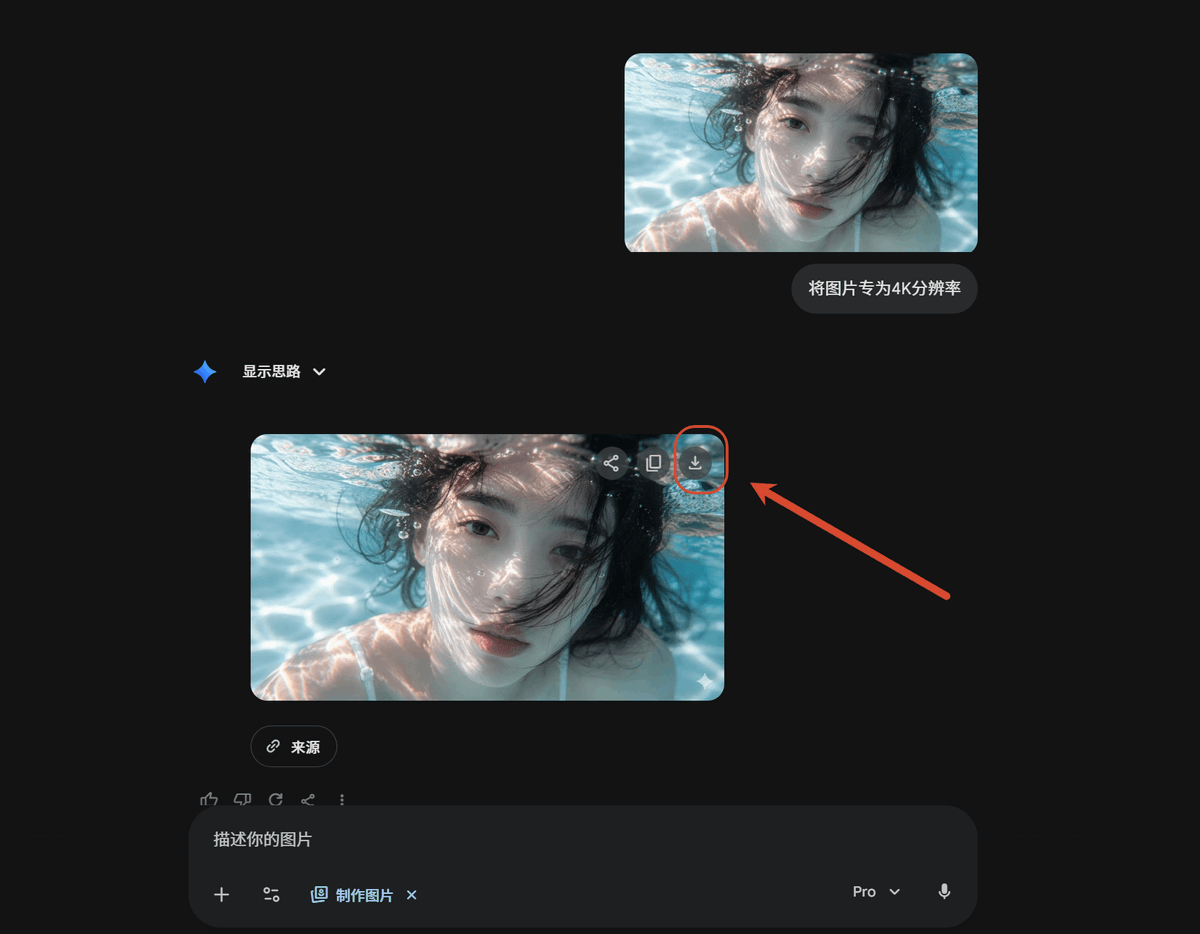
Dark AI Chat 4K 图像放大教程
创建一个深色模式的 AI 聊天教程截图,展示上传的图片如何转换为 4K 结果,并高亮显示下载按钮。
- Category
- Charts & Infographics
- Model
- GPT Image 2
- Creator
- 唐华斑竹🦅
- Source language
- en
- Source ID
- 22201
- Published
- May 23, 2026
Full prompt
Using REFERENCE_0 as the source screenshot, create a clean dark-mode AI chat interface tutorial mockup that shows the same underwater photo being upscaled. Remove the Windows Photos app chrome, side information panel, filename details, and resolution callout from the reference; use only the underwater image content as the visual asset.

Layout: Place exactly 2 rounded-corner image previews of the underwater photo in the chat: 1 smaller uploaded-image preview near the upper right and 1 larger generated-result preview below it, slightly left of center. Keep the face-obscuring gray blur/block over the person in both previews.

Chat elements: Add exactly 1 user message bubble beside the upper preview with the Chinese text {argument name="user prompt text" default="将图片专为4K分辨率"}. Add exactly 1 assistant label reading “显示思路” with a small blue sparkle icon and a dropdown chevron. Under the larger image preview, add exactly 1 small rounded “来源” source button.

Callout: On the upper-right corner of the larger generated image preview, show the download icon and highlight it with exactly 1 red circular outline. Add exactly 1 thick red arrow pointing from the right side toward that circled download icon.

Bottom UI: Include a dark rounded message input bar at the bottom with placeholder text “描述你的图片”, small attachment/tool icons, a “制作图片” chip, a {argument name="model label" default="Pro"} dropdown, and a microphone icon.

Style and constraints: Match a modern Gemini/AI-chat dark theme with lots of empty black space, subtle gray UI controls, rounded corners, and a 16:9 screenshot composition. Do not add extra images, extra arrows, extra callouts, or additional explanatory text.
Translations
Dark AI Chat 4K 图像放大教程
enUsing REFERENCE_0 as the source screenshot, create a clean dark-mode AI chat interface tutorial mockup that shows the same underwater photo being upscaled. Remove the Windows Photos app chrome, side information panel, filename details, and resolution callout from the reference; use only the underwater image content as the visual asset. Layout: Place exactly 2 rounded-corner image previews of the underwater photo in the chat: 1 smaller uploaded-image preview near the upper right and 1 larger generated-result preview below it, slightly left of center. Keep the face-obscuring gray blur/block over the person in both previews. Chat elements: Add exactly 1 user message bubble beside the upper preview with the Chinese text {argument name="user prompt text" default="将图片专为4K分辨率"}. Add exactly 1 assistant label reading “显示思路” with a small blue sparkle icon and a dropdown chevron. Under the larger image preview, add exactly 1 small rounded “来源” source button. Callout: On the upper-right corner of the larger generated image preview, show the download icon and highlight it with exactly 1 red circular outline. Add exactly 1 thick red arrow pointing from the right side toward that circled download icon. Bottom UI: Include a dark rounded message input bar at the bottom with placeholder text “描述你的图片”, small attachment/tool icons, a “制作图片” chip, a {argument name="model label" default="Pro"} dropdown, and a microphone icon. Style and constraints: Match a modern Gemini/AI-chat dark theme with lots of empty black space, subtle gray UI controls, rounded corners, and a 16:9 screenshot composition. Do not add extra images, extra arrows, extra callouts, or additional explanatory text.
Dark AI Chat 4K 图像放大教程
zh-CN以 REFERENCE_0 作为源截图,创建一个简洁的深色模式 AI 聊天界面教程模型,展示同一张水下照片的放大过程。移除参考图中的 Windows 照片应用边框、侧边信息面板、文件名详情及分辨率标注;仅使用水下图片内容作为视觉素材。 布局:在聊天界面中放置 2 个圆角的水下照片预览图:右上角放置 1 个较小的上传图片预览,下方偏左位置放置 1 个较大的生成结果预览。在两个预览图中,保持对人物面部的灰色模糊/遮挡处理。 聊天元素:在上方的预览图旁添加 1 个用户消息气泡,内容为 {argument name="user prompt text" default="将图片转为 4K 分辨率"}。添加 1 个显示为“显示思路”的助手标签,并配以蓝色小火花图标和下拉箭头。在较大的图片预览下方,添加 1 个圆角“来源”按钮。 标注:在较大的生成图片预览的右上角显示下载图标,并用 1 个红色圆圈将其高亮标出。添加 1 个从右侧指向该圆圈下载图标的粗红色箭头。 底部 UI:底部包含一个深色圆角消息输入栏,占位符文字为“描述你的图片”,配有小型附件/工具图标、“制作图片”芯片、{argument name="model label" default="Pro"} 下拉菜单以及麦克风图标。 风格与约束:匹配现代 Gemini/AI 聊天深色主题,保持充足的黑色留白、精致的灰色 UI 控件、圆角设计以及 16:9 的截图比例。请勿添加额外的图片、箭头、标注或说明性文字。